01
Open Your Audio
Open an audio file or record a new take.
Record, edit and enhance music or voice recordings with a free audio editor for your Windows PC.
Completely Free Software. No Purchase Or License Key.
Windows 11 & 10 · 64-bit · Windows Installer (.exe)
Version 8.1.0 · 2.5 MiB See Features

Music Editor Free · Audio Editing Workspace Click To Enlarge
Open a file, make your changes and save a finished copy.
Open an audio file or record a new take.
Select, trim and adjust the sound you want.
Choose an audio format and export a new copy.
From a new recording to the finished audio file.
Select a section on the waveform, remove unwanted parts and listen back before saving.
Read The Guide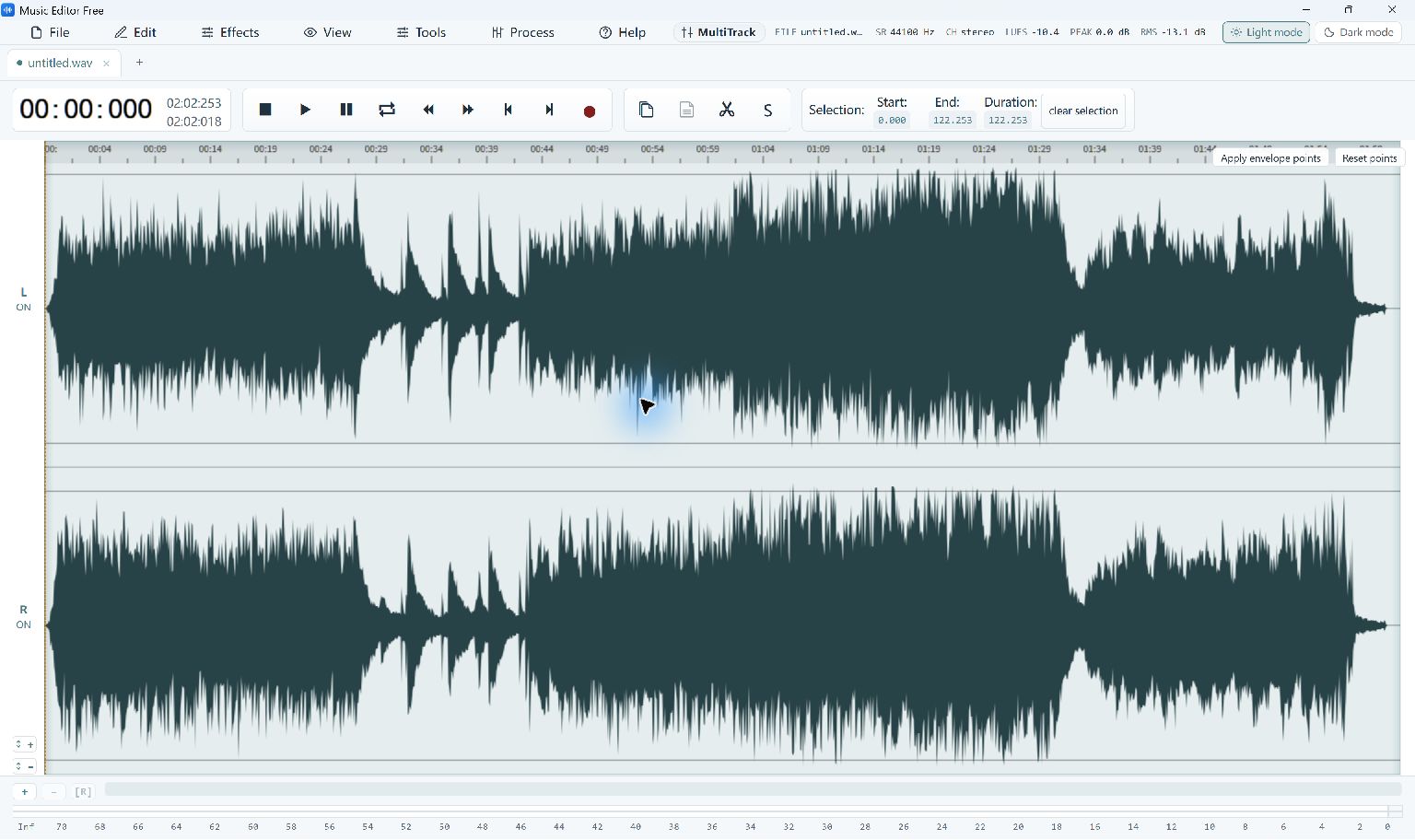
Apply voice noise reduction in one step, then listen and compare the result with the original.
Read The Guide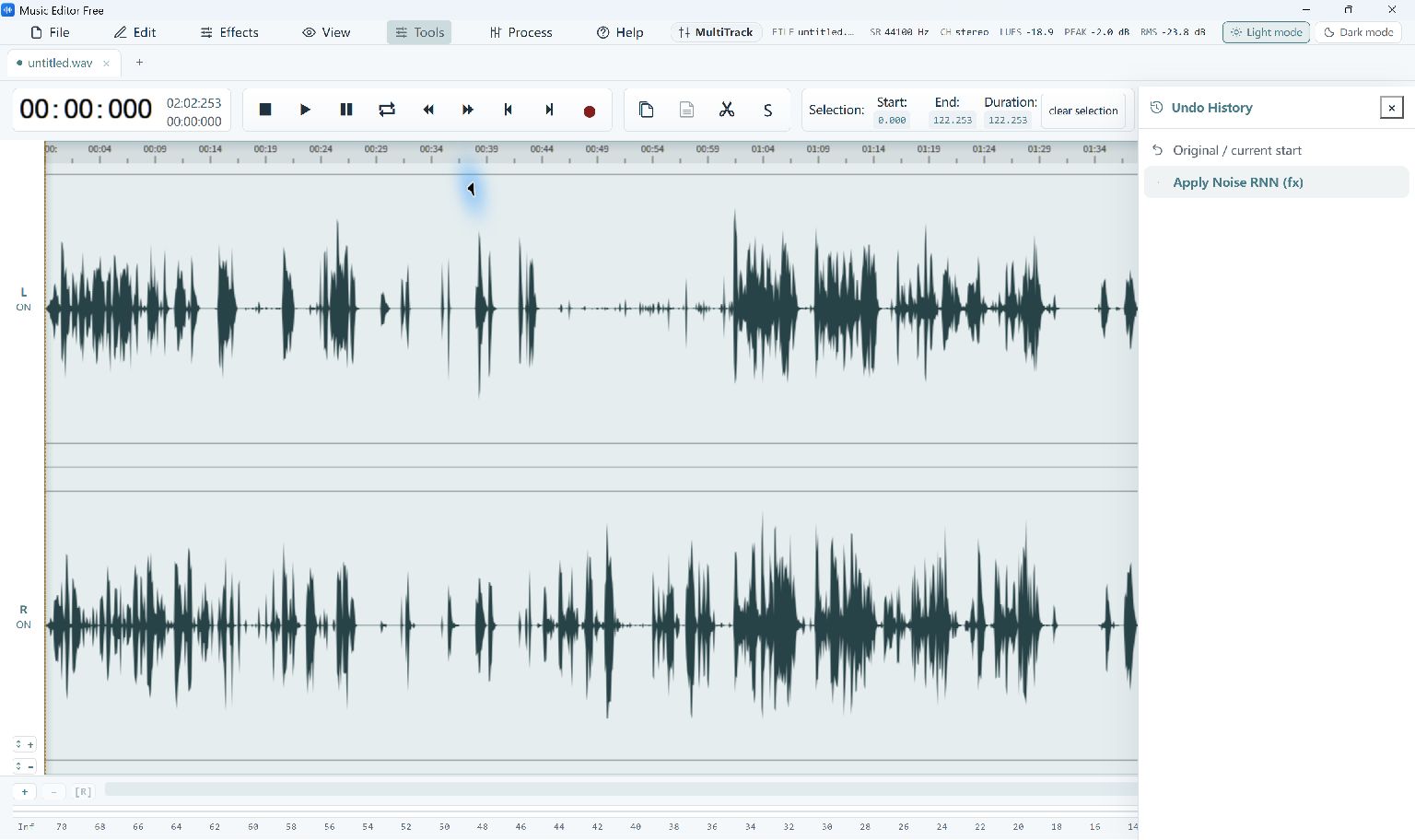
Select Audio On The WaveformClick To Enlarge
Start recording and editing on your Windows PC.

Version 8.1.0 · 2.5 MiB
Windows 11 & 10 64-bit
Download Free SoftwareOptional setup offer: RelevantKnowledge. You can decline it and still use the app.
A few useful ways to put the editor to work.
Trim an MP3 for a presentation or video.
Trim an MP3Reduce distracting noise in an interview or voice memo.
Reduce Background NoiseRecord narration, then remove pauses and false starts.
Record AudioCut a short section from a song you own.
Create a RingtoneAdd fades or change the sound of a selected section.
Apply Audio EffectsChange the sample rate for your next editing workflow.
Resample AudioConvert a video, change an audio format or create a disc.

Burn audio CDs, data discs and ISO images.

Convert videos for playback and extract audio.

Batch-convert audio to MP3, WAV, FLAC and more.

Save disc images and write new disc copies.
Get answers before you install, or learn your next edit.
Yes. The current release includes its editing and supported export features without a purchase, account or license key; the other four apps on this site are also free.
This release is for 64-bit Windows 11 and Windows 10 build 19041 or later. It requires the Microsoft Edge WebView2 Runtime; setup provides a download link if the runtime is missing.
Supported output formats include MP3, WAV, FLAC, M4A and OGG. Use the export dialog to choose a format and the available output settings.
The editor includes microphone and system-playback recording. Available inputs depend on your Windows audio devices and permissions.
Voice noise reduction can reduce unwanted background sound, but results depend on the recording. Apply it once, compare the result and use Undo if the voice sounds less natural.
Yes—export your edit with a new file name and keep the original as your source. Re-encoding MP3 and other lossy formats can affect quality, so avoid repeatedly exporting the same compressed copy.
A missing runtime or the first compressed-audio export may require a component download. The editor caches export components for later use, so those downloads are not repeated for every local file.
You can change the default desktop shortcut and run-after-install options, and setup may present an optional RelevantKnowledge research offer. You can decline that offer and still install and use the audio editor.
Record, trim and export with Music Editor Free.
Download Free SoftwareWindows 11 & 10 · 64-bit · Completely Free


