
Music Editor Free is a professional but easy and intuitive audio editor. With this simplest editor, you can edit your audio files with all classic editing functions: cut, copy, paste, paste mix, trim/crop, delete, undo and so on. If required, add effects like echo, amplification and noise reduction, etc. to your audio file. You can easily record any sound, music and other audio recordings. You even can combine, mix, insert and do other audio operations easily. In this article, we’ll show you how to edit music and add audio effects to you audio with Music Editor Free.

How to Edit Music and Add Audio Effects
Step 1. Input an audio file
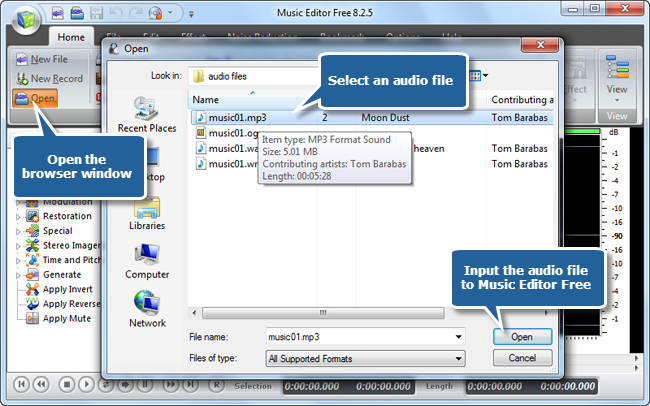
To edit music and add audio effects, launch Music Editor Free first and click “Open” to add audio file to the waveform window.
Step 2. Select a region
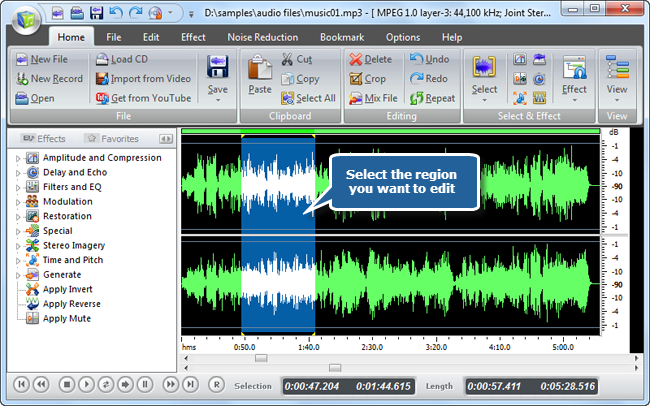
Select the region you want to edit. To select an area where you want to edit click within the waveform editing area and, without releasing the left mouse button, move the cursor to the left or right to make a selection.
Step 3. Edit Music (Edit the selected waveform)
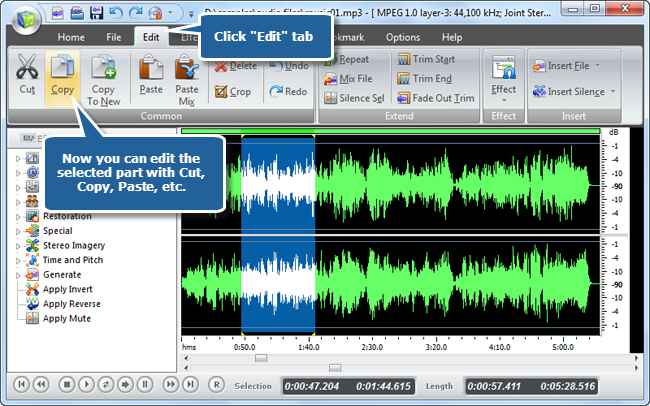
Click “Edit” tab to edit music. Now you just need to click the buttons of cut, copy, paste, crop, delete and many more to edit the selected waveform.
Step 4. Add audio effects to the selected region
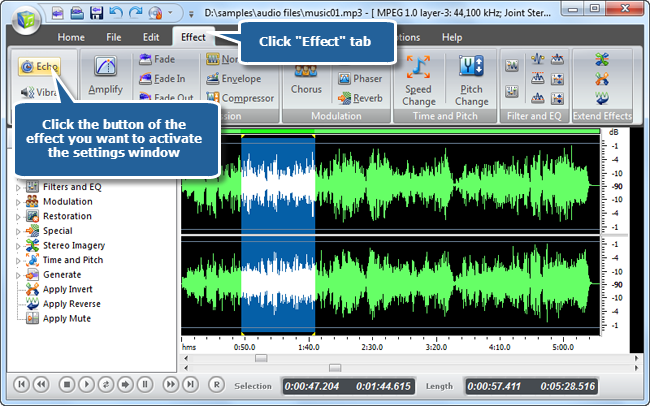
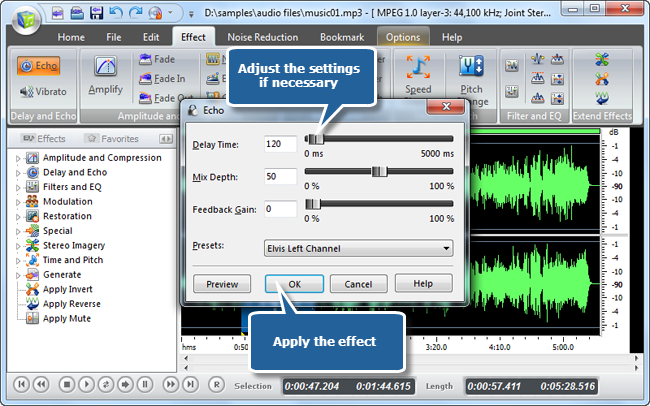
If you want to add audio effects to the selection, just go to “Effect” tab to click a button of the effects provided, like echo, vibrato, fade in, fade out, chorus, amplify and so on. The settings window of corresponding effect will be activated.
Step 5. Adjust the output quality
You can adjust the quality by specifying detailed parameters or applying some popular presets. Click“Preview” to listen to the music before adding the effects to the waveform to make sure you get exactly what you want.
Step 6. Save the changes
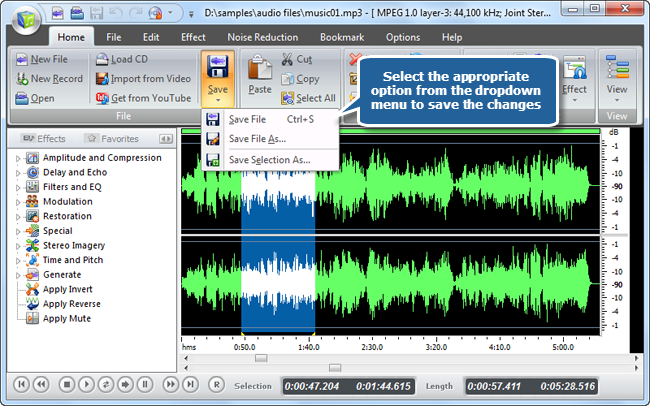
Now go back to the “Home” tab and click the “Save” button if you would like to change your source file. You can also click the black arrow under the “Save” button to select the necessary option:
- Save File to save all the changes to the source file;
- Save File As… to save the edited audio track with a different file name and/or location;
- Save Selection As… to save just the highlighted selection to a file.
What Does Our Customer Think about Music Editor Free?
“I think that the music editing software I used is, by far, one of the best audio editing programs I’ve ever tried. I’ve found Music Editor Free to be very useful. I really appreciate its straightforward interface and the simple workflow. What I need to do is just add files, specify settings and hit Save. It misses out good and goes straight to great on my programs list all the time because it has changed my musical life!“
– Douglas Henwood (tucows)

Conclusion
Music Editor Free has a long history of audio editing and it contains all of the tools you need to create professional music. This audio editing software is not just an audio editor, it has been designed as a universal tool for music creation. You are allowed to record sound from any source, burn an audio CD, add audio effects and many others. By using the presets for audio editing will make you get your desired results at faster speed. The focus of this superb software is entirely on the output quality and you will be mightily impressed with the top quality.