
If you want to convert some text to voices and insert them to an audio file, Music Editor Free is the right one to do this. With the built-in TTS tool, you can easily add text to speech to your audio files or add narration to sound files.

How to Add Text to Speech to Audio Files
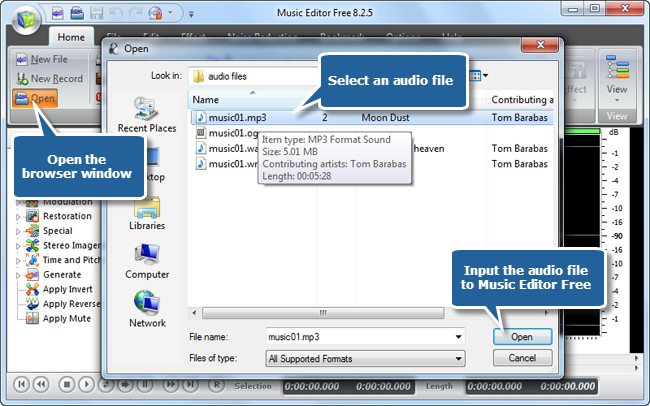
Step 1. Input an audio file
Launch Music Editor Free, click “Open” to input an audio file to the program.
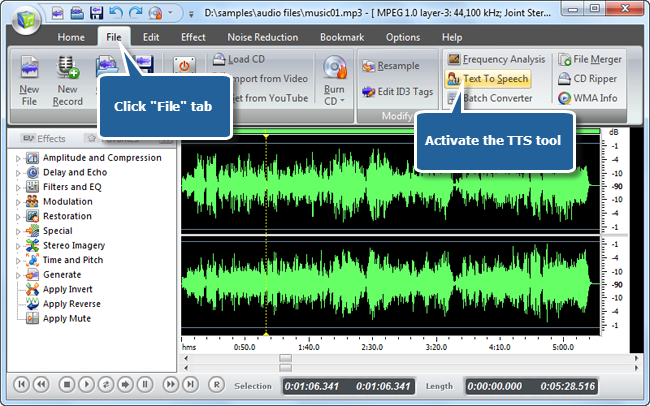
Step 2. Activate the Text to Speech tool
The waveform of the file can be viewed now. You need to left-click on the waveform to select an insertion point as needed. Then, click the “Text to Speech” to activate the TTS tool.
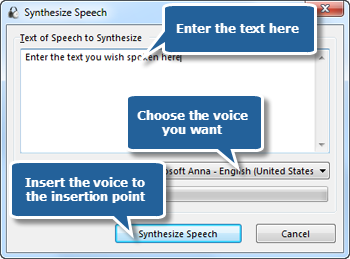
Step 3. Add Text to Speech (Insert the converted speech)
In the pop-up window you can enter the text you wish spoken. Choose the voice you need (Speech engine could be added through adding more voice packages). Click “Synthesis Speech” and within seconds the speech will be added to the selected point. Now you can save the processed file – and that’s all.
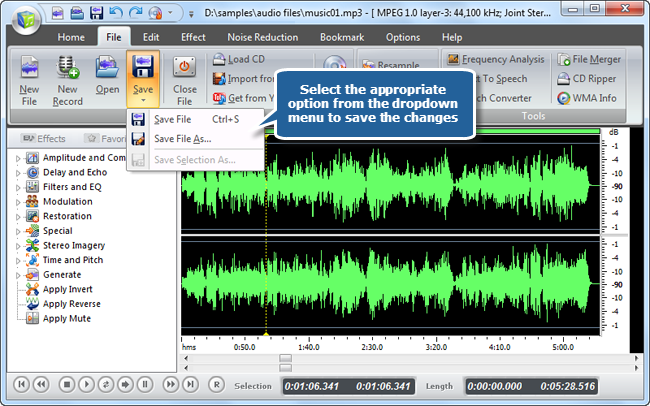
Step 4. Save the changes
Now go back to the “Home” tab and click the “Save” button if you would like to change your source file. You can also click the black arrow under the “Save” button to select the necessary option:
- Save File to save all the changes to the source file;
- Save File As… to save the edited audio track with a different file name and/or location;
- Save Selection As… to save just the highlighted selection to a file.
What Does Our Customer Think about Music Editor Free?
“Although I’m a beginner for audio editing and I’ve tried some other audio editing programs these days, for me, Music Editor Free has been the top one on my list. First, it provides me so simple download and installation process. Second, it simplified the UI and processing steps. Third, I can find all I need here like those effects, audio recording and CD ripping function and so on. Last but not the least, it’s completely free. I have never been required to pay extra money for certain functions or pay more effort for a registration.”
– Mike Ballot (Brothersoft)

Conclusion
In summary, as technology progresses, Music Editor Free is getting smarter, lighter and easier to use for those who love everything digital. It makes no mistake and each one including novice users will have a audio editing powerhouse at their fingertips. It provides detailed tutorials which will make even amateur music editors pros. Whoever is looking for the best audio editor will find everything they need here and they might wonder how can they live without it!