
Introduction
Music Editor Free provides you a tool to easily bookmark the audio file being processed. There is also a region manager to help you select the region as needed. Now you can easily go back to the section you are working on.

How to Add Bookmark and Region
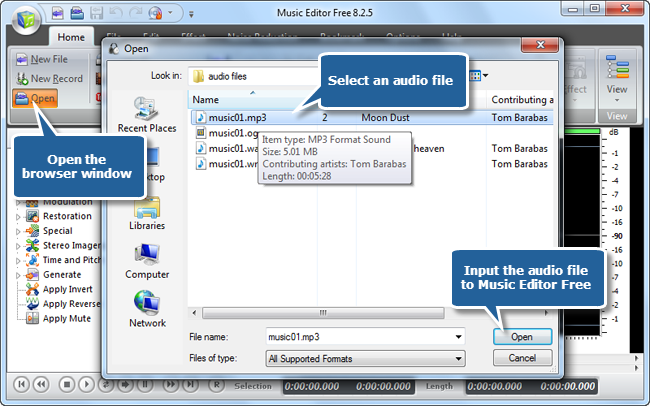
Step 1. Input an audio file
Launch Music Editor Free, click “Open” to input an audio file to the program.
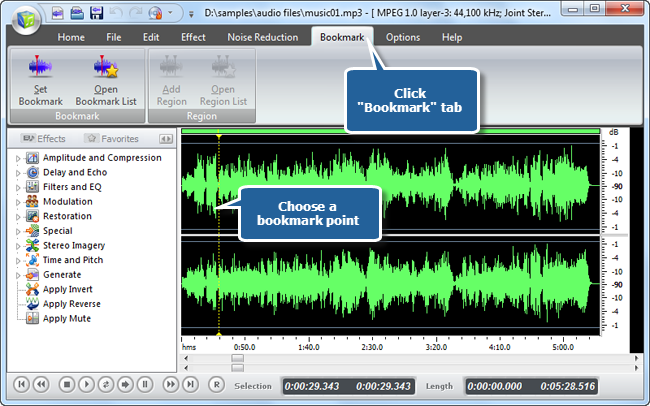
Step 2. Choose a bookmark point
Click “Bookmark” tab & left-click on the waveform of the file to choose a bookmark point.
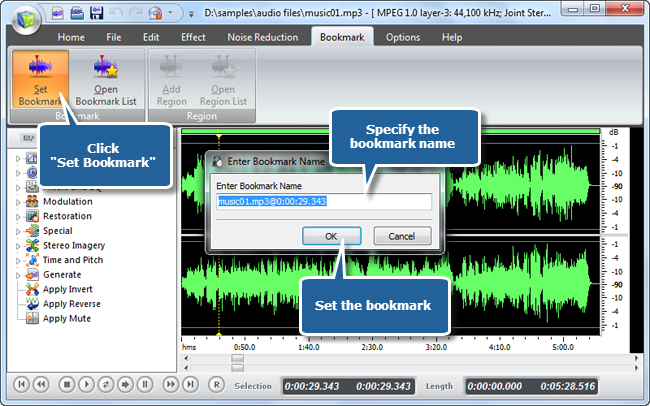
Step 3. Add the bookmark
Click “Set Bookmark” and a window will pop up for specifying the bookmark name. Click “OK” to add bookmark.
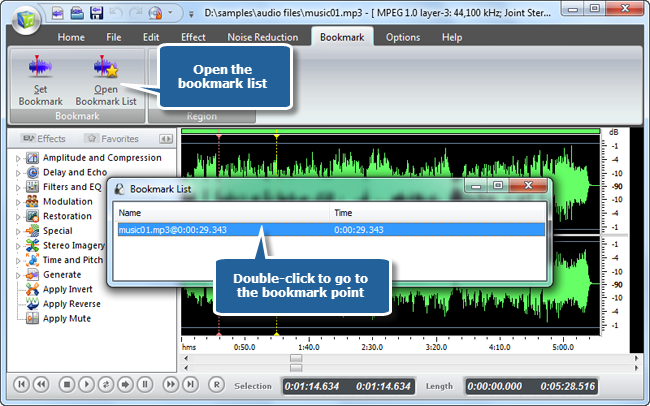
Step 4. Open bookmark list
The bookmark list window will pop up, with the bookmark you added. You can double click the bookmark in the list to return to the bookmark point. The bookmark list can also be activated manually by “Open Bookmark List” button.
Step 5. Select a region
To add a region, you need to drag the cursor on the waveform to select a part of the audio.
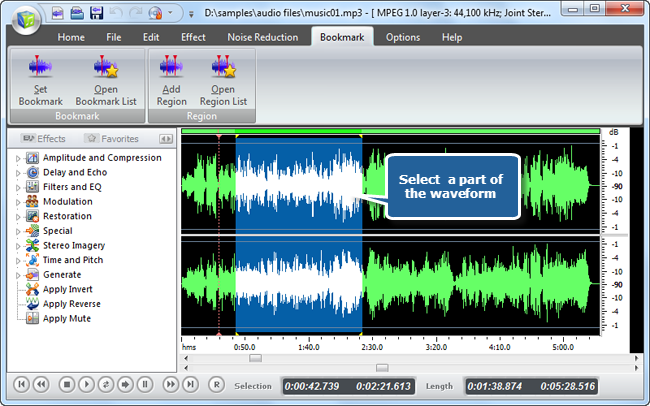
Step 6. Mark the region
Click “Add Region” and a window will pop up for specifying the region name. Click “OK” to mark the region.
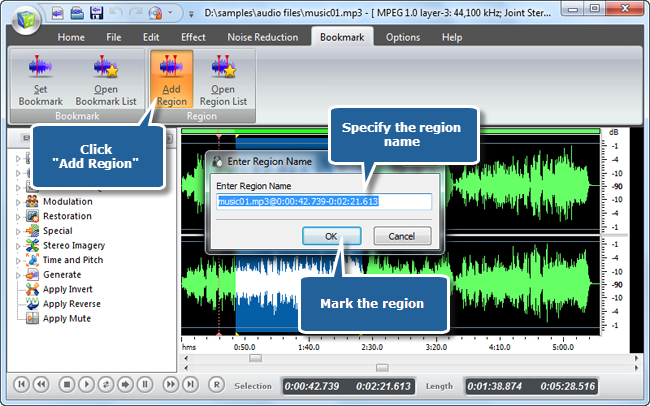
Step 7. Open region list
The region list window will pop up, with the region you added. You can double click the region in the list to select it on the waveform. The region list can also be activated manually by “Open Region List” button.
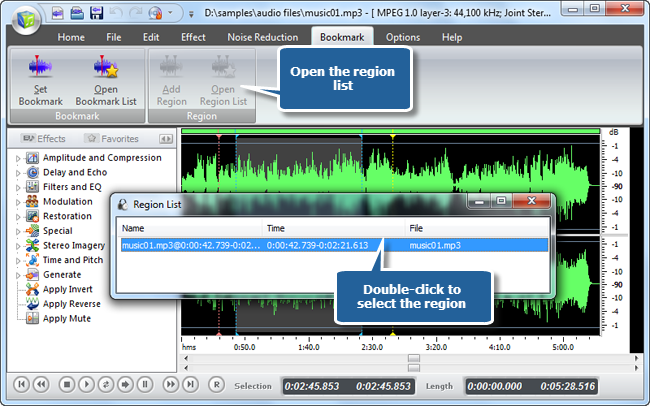
Pros
As a full-featured audio editor, Music Editor Free really brings users a lot of possibilities to their audio tracks.
- This free audio editing software has tons of functions so that you can cut, copy, paste, record, apply effects, change bitrates, convert, rip audio CD and many more.
- It works at a very fast speed and it’s non-destructive, which means you are allowed to undo your actions without changing the original file.
- The best thing about Music Editor Free is that it is exceptionally lightweight so your downloading and launching process will not be time-consuming.
- With an easy to use interface, users of any level can get started right away.

Conclusion
Whether you are a professional music engineer or just have a passion to play around with audio files, you need to look for an audio editing tool which can pitch best with all your requirements. Music Editor Free has got it all to help you through. It brings along a bunch of features which you can expect from a pro audio editing program. From now on, don’t hesitate, just let Music Editor Free make your audio editing great fun.